
Let Me Introduce: The Twitter Trends Terminator
Aus meinem alten Blog (2012–2017). Der Text steht so, wie ich ihn damals geschrieben habe.
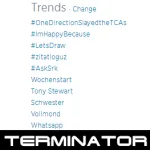 I love Twitter. I really do. Its a great source of information for me. Especially in the area of software development. But I have to admit that I hate those Twitter trends. Those words, tiny sentences or hashtags. They try to tell me what’s important or hipp. But in most cases, in fact 99.9% of those cases, I just found them very annoying. Not useful, inspiring, funny or whatever. Just stupid and annoying.
Of course thats just my opinion and I think there are dozens of teens people out there crying when they’re watching some of „their“ topics trending right now. Completely fine for me. But I just don’t want to see them any more.
That was the birth of the mighty Twitter Trends Terminator. Send back through space and time, awoken naked somewhere out there to hunt those Twitter trends down. Forever. Not just hiding them somewhere. Just as my old friend Darth Sidious(öffnet in neuem Tab) told me long ago:
Wipe Them Out. All of Them! Darth Sidious (YouTube(öffnet in neuem Tab))
The Chrome Extension
The extensions wasn’t really complicated to implement. There was just some research necessary when I started the project, because this is my first Chrome extension. One major obstacle was to change the Document Object Model after the Twitter main page is completely loaded. Thats important, because the Twitter Trends and the Who to Follow box are loaded asynchronously. At this time, the Document Object Model is completely available. But the div elements for the trends and the follower suggestions are still missing.
My solution depends on a background task and an inject task. Lets have a look at the background task first.
/*
 * Listens on the complete event of a tab reload and executes the inject.js script.
 */
chrome.tabs.onUpdated.addListener(function (tabId, changeInfo, tab) {
  if (changeInfo.status == 'complete') {
	chrome.tabs.executeScript(tab.id, {
	  file: "src/inject/inject.js"
	})
  }
})
This code adds a new listener to the onUpdated(öffnet in neuem Tab) event of every Chrome tab. If a website in a new or existing tab gets updated and after this update process completes, the code within the if statement gets executed. This injects and executes a new script in the context of the page inside the particular tab.
This Inline.cs file does the whole magic. The code is listed below.
/*
 * Searches for the 'module trends' class name, which is used for the Twitter trends div element.
 * If this div is found, it gets removed from the document DOM.
 */

// Some magic string constants
var trendsClassName = 'module trends'
var whoToFollowClassName = 'module roaming-module wtf-module js-wtf-module'

chrome.storage.sync.get({
    trends: true,
    whoToFollow: false
}, function(items) {

	var trends = items.trends
	var whoToFollow = items.whoToFollow

	var trendsElement = document.getElementsByClassName(trendsClassName)
    var whoToFollowElement = document.getElementsByClassName(whoToFollowClassName)

	if (trendsElement.length == 1 && trends) {
        trendsElement[0].remove()
    }

    if (whoToFollowElement.length == 1 && whoToFollow) {
	    whoToFollowElement[0].remove()
    }
})
First the two options are loaded so the user can decide if the Twitter Trends and/or the Who to Follow box are terminated or not. Next the DOM is searched by the getElementsByClassName method to find those special div elements. If they’re found and the option says the element should get removed, the DOM is manipulated.
Thats all. Nothing more, nothing less. About 40 lines of JavaScript code get rid of the Twitter Trends and the Who to Follow box.
Of course there’s a little bit more JavaScript and HTML code for the option page but thats not much. I just refer to the GitHub repository Twitter-Trends-Terminator(öffnet in neuem Tab) because this Chrome extensions is open source.
Installation
Since yesterday, the extension is listed in the Chrome Web Store. Just access it through this link(öffnet in neuem Tab) and search for the extension called Twitter Trends Terminator(öffnet in neuem Tab). You should get a page like showing in image 1.
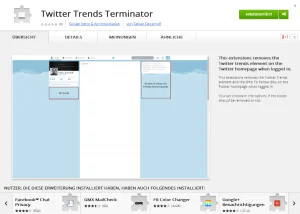
Image 1: The Twitter Trends Terminator in Google Chrome Web Store.
Because I don’t know how long this extension is available in the store – maybe Twitter don’t like it 🙂 – you can download a Chrome package(öffnet in neuem Tab) via the GitHub repository.
Results On The Twitter Page
After this extension is activated, the Twitter homepage just needs a single refresh. For example by hitting F5 in Chrome. Maybe this behavior gets updated someday, so that the page is refreshed automatically.
Image 2 contains a screenshot of the new Twitter homepage. In this case without the trends and the Who to Follow box.
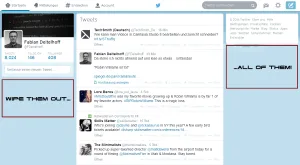
Image 2: The Twitter Trends Terminator in action.
Those div elements gets removed from the page every time you refresh the page. And of course only on the Twitter homepage, because the extension only has access to the Twitter URL.
Conclusion
After some time of research it was very easy to implement the removal of those two div elements. I’m not quite sure if I want to add more functionality. At this time I don’t think I’ll add much more. Maybe some improvements for the options and some other features that can change the Twitter page in another way.
But the code demonstrates how its possible to change the DOM of any page. It’s easy to remove special tweets just to mention another example.
Happy using and coding :). Don’t hesitate to provide some feedback or create an issue on the issue page(öffnet in neuem Tab) of the repository if somethings not working.